 Omnivorous Cat
How to practice small talk with AI for free: a practice partner you won't feel awkward around
AI is everywhere now, and for a lot of things the bar to start learning has dropped, or put differently, there are just better resources to lean on. Language is one example. I use Duolingo myself, but the moment you actually get to talk to people you notice that outside of work, what comes up most is small talk, and the words small talk needs are not the same batch as the ones on your flashcards or the ones you use at work. Language runs on muscle memory and regular practice, so if you don’t have a good resource or a good chance to use it and only pull it out once in a while, it’s hard to make progress, and small talk is exactly the part that’s hard to drill.
AI, now that its spoken conversation has gradually matured, happens to fill that gap.
Why ChatGPT’s voice mode
From what I can feel, OpenAI (ChatGPT) still does speech recognition best. As of writing, ChatGPT’s real-time voice conversation is nearly free. Its official name is Advanced Voice Mode; OpenAI has since shipped a newer, more natural real-time mode called Live, and either one works for practicing a language. Advanced Voice Mode had a usage cap for a while when it first launched (around ten minutes a day back then), but I haven’t hit a limit with a normal day’s use lately.
This feature lets you have a real-time conversation with the AI: you say a line, and it answers almost instantly. Its original setting is more for talking things through or planning, but flip it around and it works just as well for practicing a language, that is, practicing how to talk to a foreigner.
If you follow prompting at all, you’ll know people often have the AI play a role. Once you give it a role, it tends to bring its own sense of the logic and behavior that role should have, which helps it reach for the relevant knowledge more accurately. The method and tools here are built around that same flow.
Where chatting with ChatGPT directly gets stuck
We can of course just open ChatGPT, log in, hit the button and start talking. The real problems come after:
- How do you come up with good small talk topics?
- Once you’re done, how do you get a thorough analysis of it?
- How do you record it in a way that’s actually useful?
None of these is easy with a single chat window. So I wired up two tools to close the loop.
Tool one: a browser extension that exports the whole conversation as plain text
The first tool is a browser extension you can install on Chromium-based browsers like Chrome or Microsoft Edge. Its job is to export a whole ChatGPT conversation as text.
If you’ve tried copying this kind of live conversation, you’ll know the text comes in an awkward form and it’s hard for most people to grab the whole thing at once; ChatGPT itself also leans toward letting you share a conversation (this format even has some sharing limits) rather than letting you copy a stretch that spans many lines.
I’ve published it on the Chrome Web Store, and you can find it on this page.
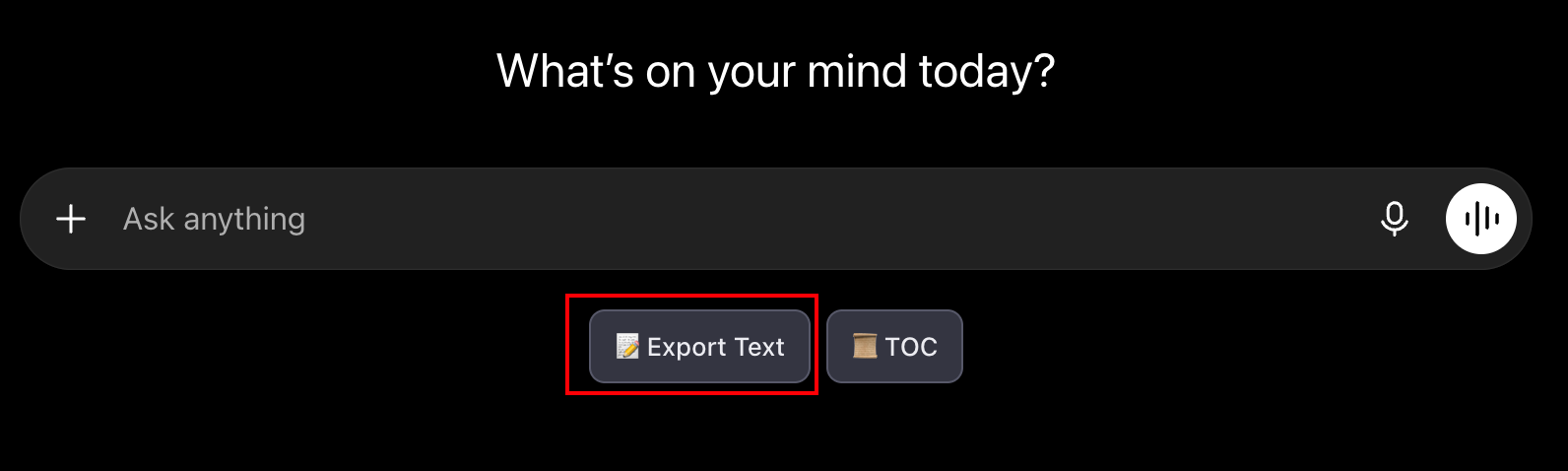
Once it’s installed, ChatGPT’s screen gets an extra Export Text button; press it and it exports the current conversation as a plain text file that just about any computer can open. That file feeds into the second tool in a moment.
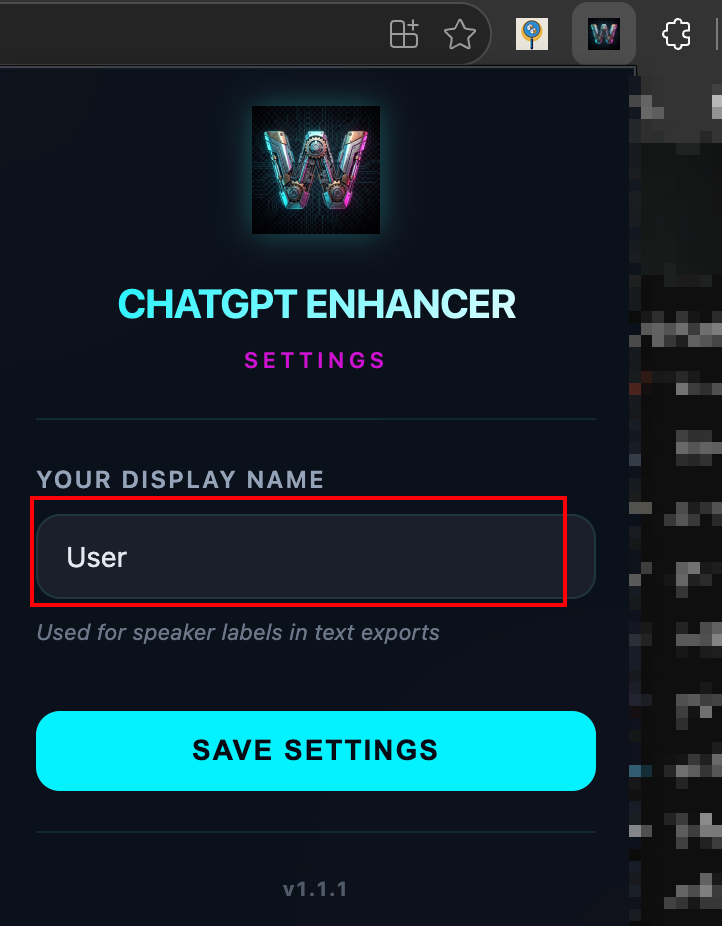
You can change the speaker name used in the exported file here, so the later steps can call you by a name you like.
Tool two: Gab Guide, for topics and line-by-line feedback
The second tool is called Gab Guide. “gab” just means casual chatting, close to small talk, a short exchange. That earlier problem of “what if I can’t think of a good topic” is where Gab Guide comes in.
Gab Guide’s topics are ones I worked out by going back and forth with the AI through prompts and then filtered, split into groups by difficulty (aligned with CEFR’s A / B / C, that is beginner, intermediate, advanced). The defaults are English, Japanese and Spanish, but if you need another language you can just add it; with current models I’m confident most languages communicate fine.
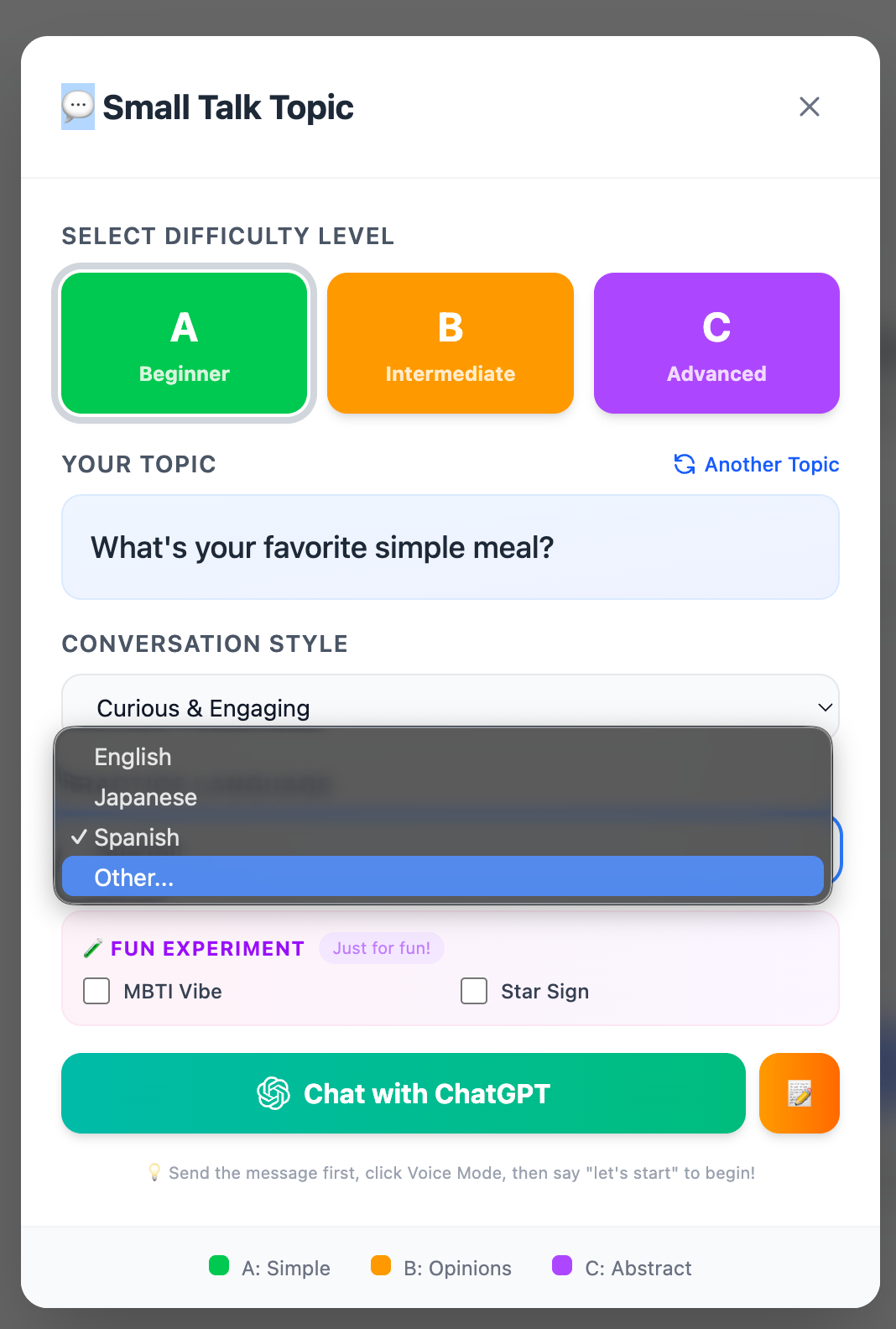
It has two features:
Feature one: hand you a small talk topic and drop you straight into the conversation.
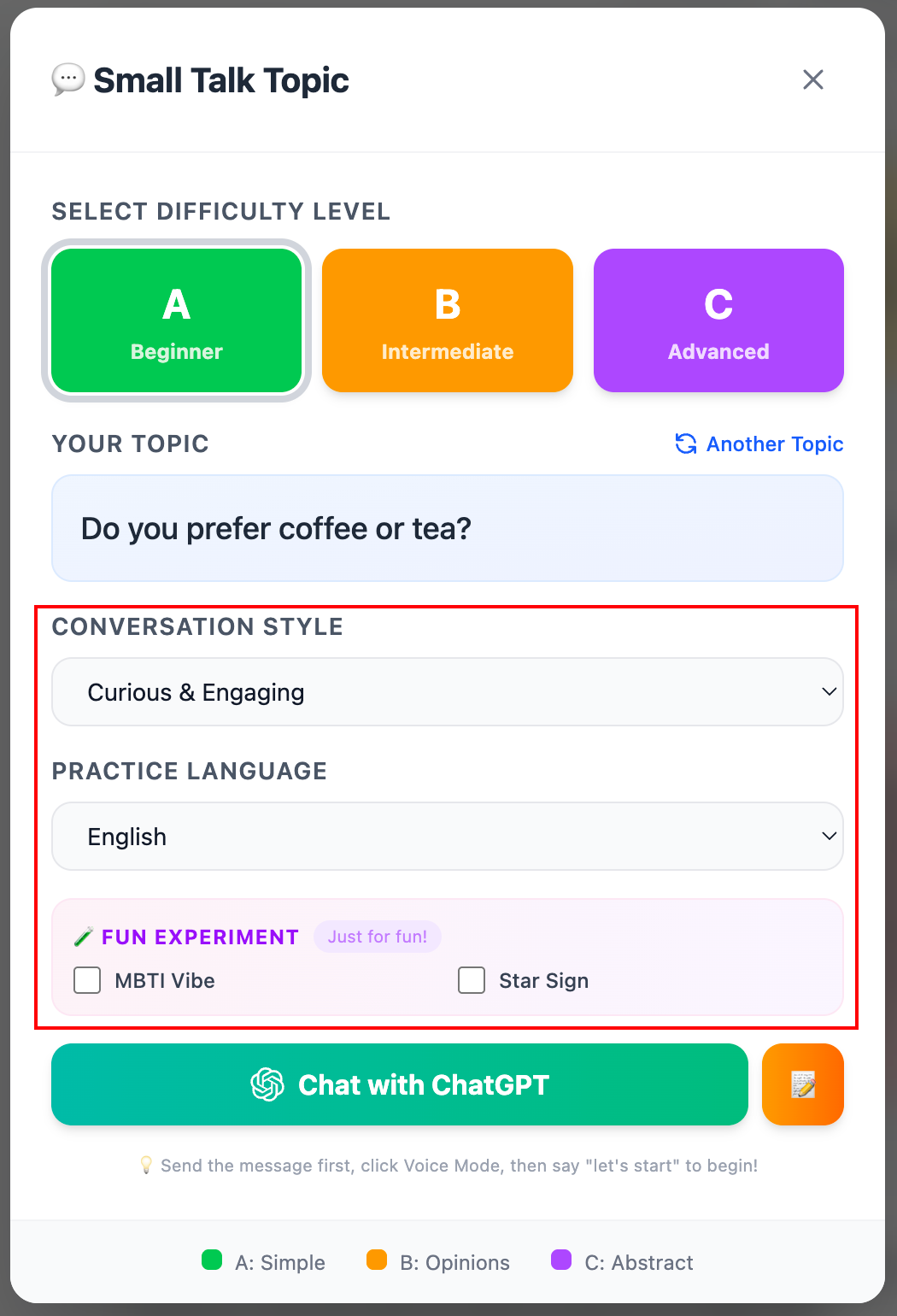 You pick the difficulty you want to practice, then “roll” a topic. Below there are a few fun options that let it simulate a star sign or MBTI, more of a for-laughs touch. After the roll, it opens the web version of ChatGPT with the parameters set and the prompt already typed in, so you just hit send and ChatGPT replies with something like “Sure, no problem, just tell me when you want to start.” At that point you hit the Start Voice button in the composer, say “OK, let’s start” or “let’s begin”, and it’ll talk with you following the small talk topic set here. Whenever you’re done, use that extension from before to export the conversation as
 .txt.
It also has a Cheat Sheet feature that gives you some vocabulary and sentence-pattern hints for the topic you’re about to practice, to help you express yourself more smoothly during the conversation.
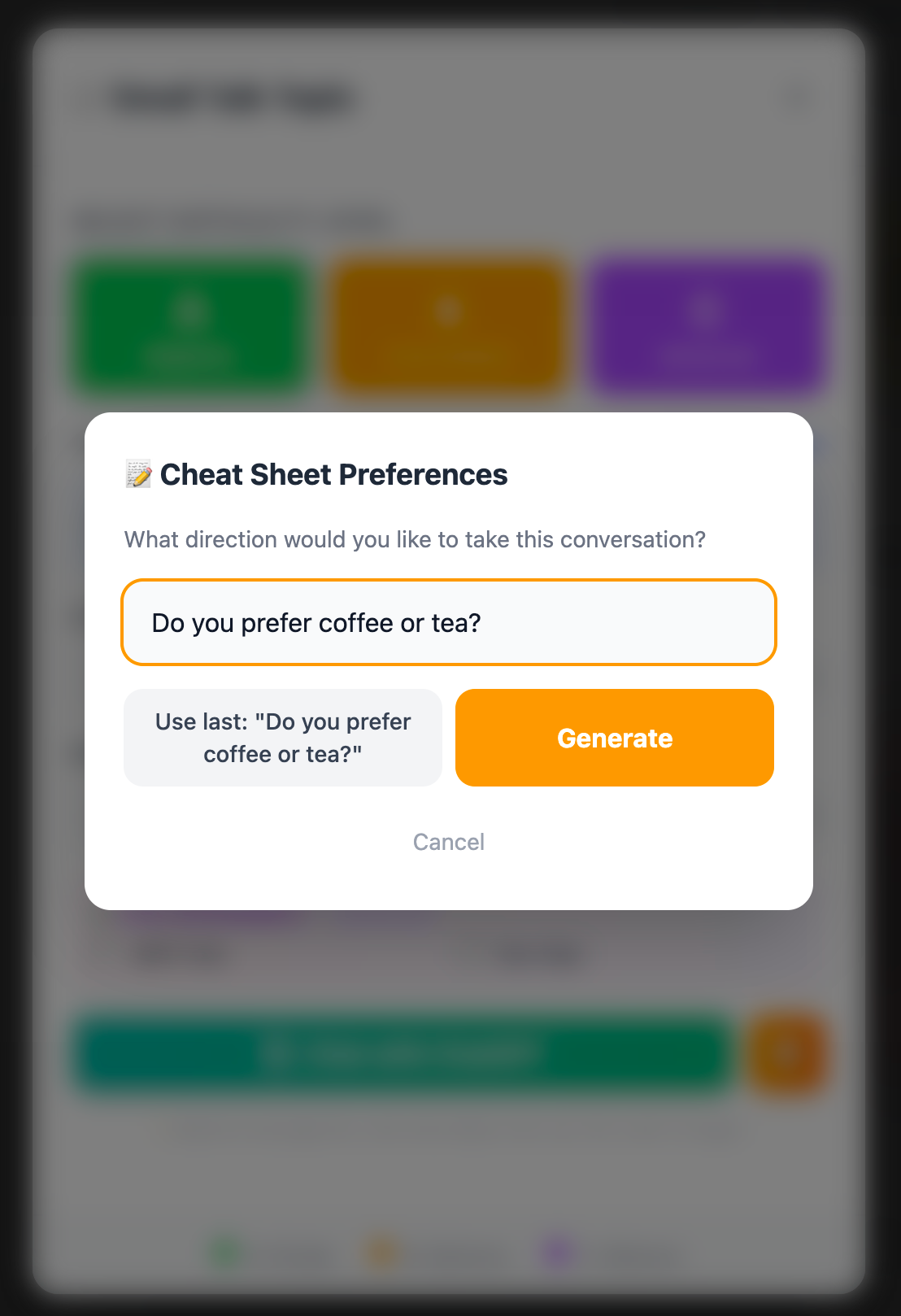 Paste in your topic and let the AI behind it gather the kinds of words or patterns that tend to come up in that conversation:
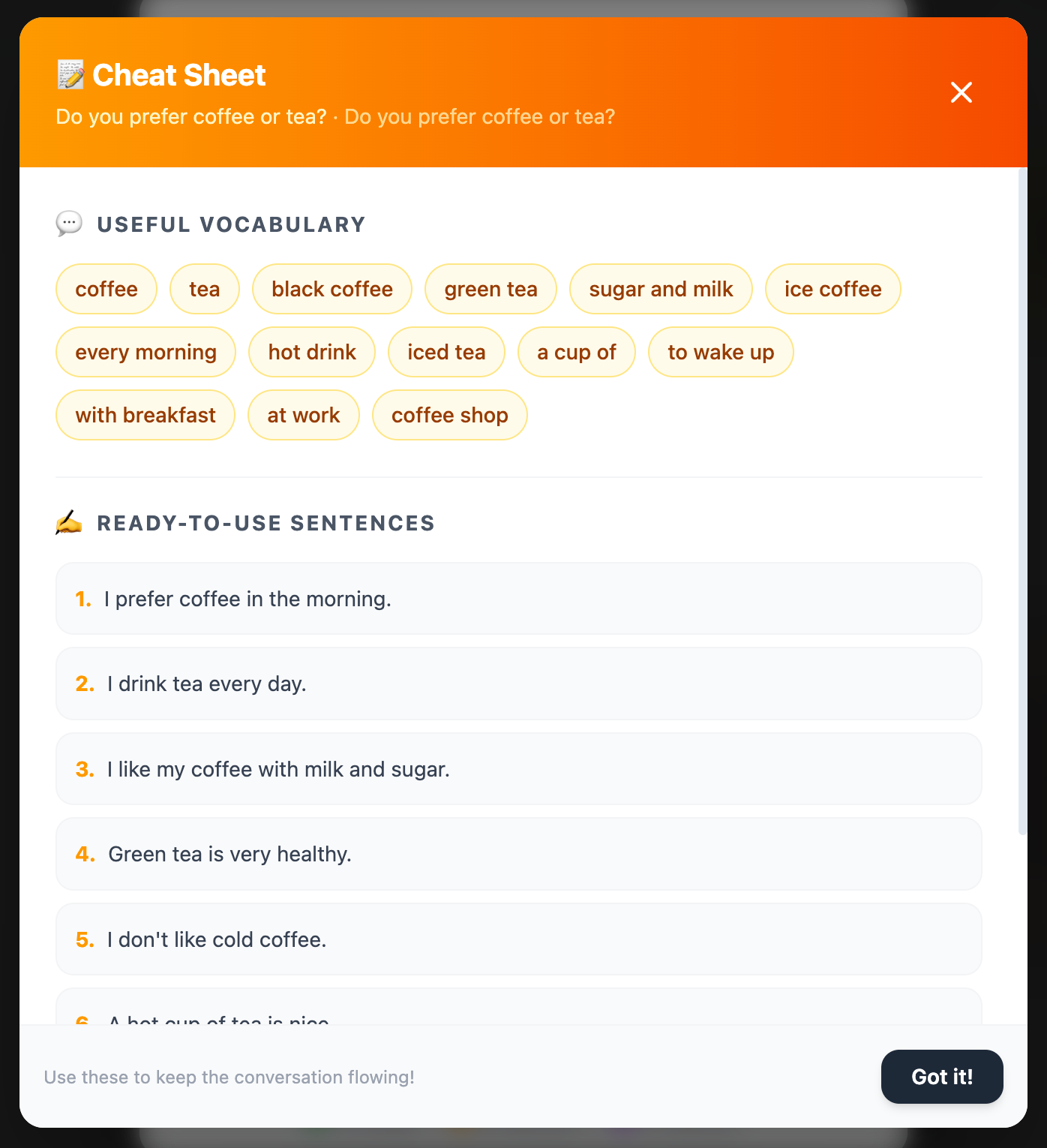
Feature two: paste the conversation back in for line-by-line feedback.
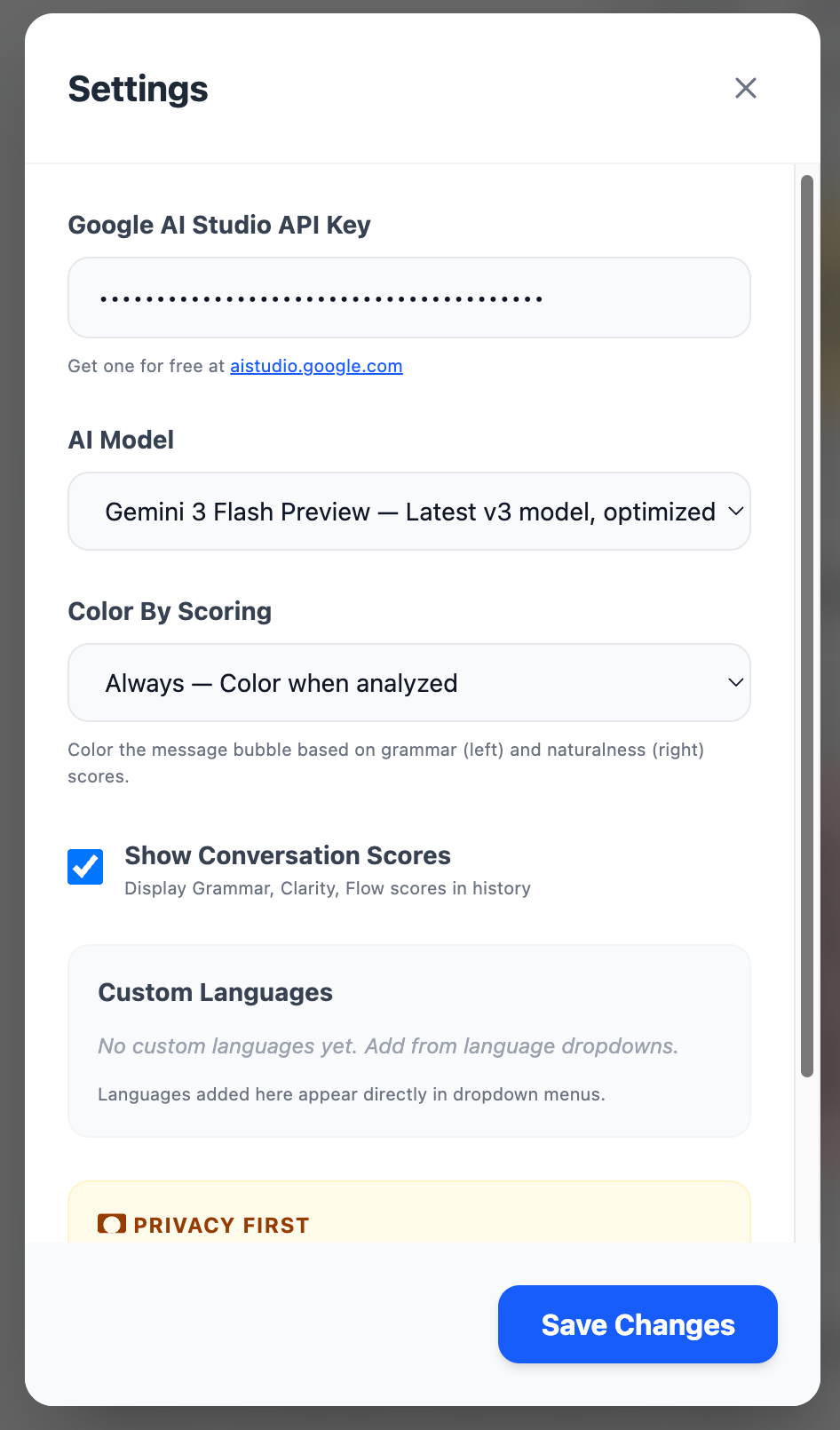
Upload the text you exported to Gab Guide. Its data all lives in your own local storage and isn’t sent to me. Pair it with Google’s free Gemini API key and you can run the analysis. You pick the model in settings depending on the conversation; judging grammar and meaning isn’t a very demanding task, so a faster model (something like flash / lite) is usually enough, unless you’re chasing very fine, context-heavy points, which call for a stronger model.
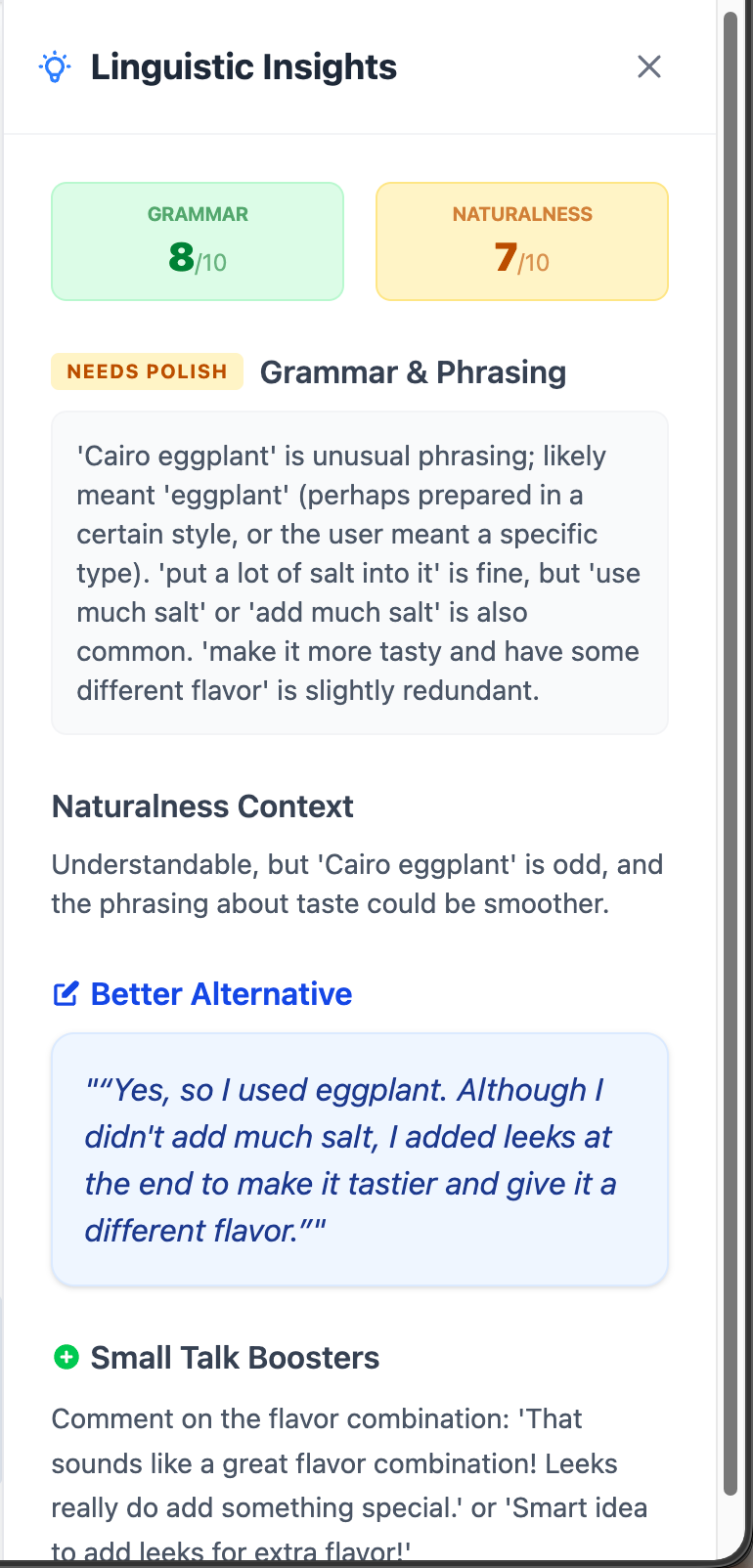
Click into any line and it colors it, telling you on a 1 to 10 scale how complete the sentence is, how correct the grammar is, and whether you got your intended meaning across or whether the other person would actually be lost. Where something can be fixed, it points it out directly; if this is the meaning you were going for, it also gives you a cleaner way to say it.
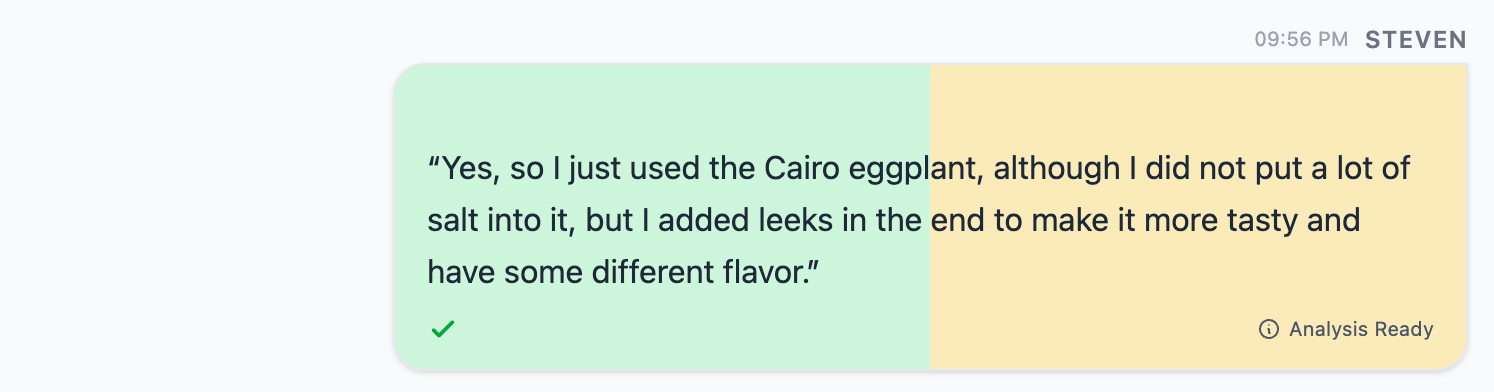
The analysis splits into two dimensions, which is also the basis I specifically checked for judging whether a conversation counts as “effective, a good conversation”: grammar accuracy on the left, clarity of expression on the right. The two influence each other, but they’re worth separating. The reason: a native speaker is fluent in their own language, so even if the other person only throws out a few words or leans on rough word order, we can still catch their meaning through a few quick exchanges, and even when their grammar is wrong we still understand. Turn it around and it’s the same when you speak a foreign language, so scoring “can they understand it” and “is the grammar right” as two separate axes is what makes it clear.
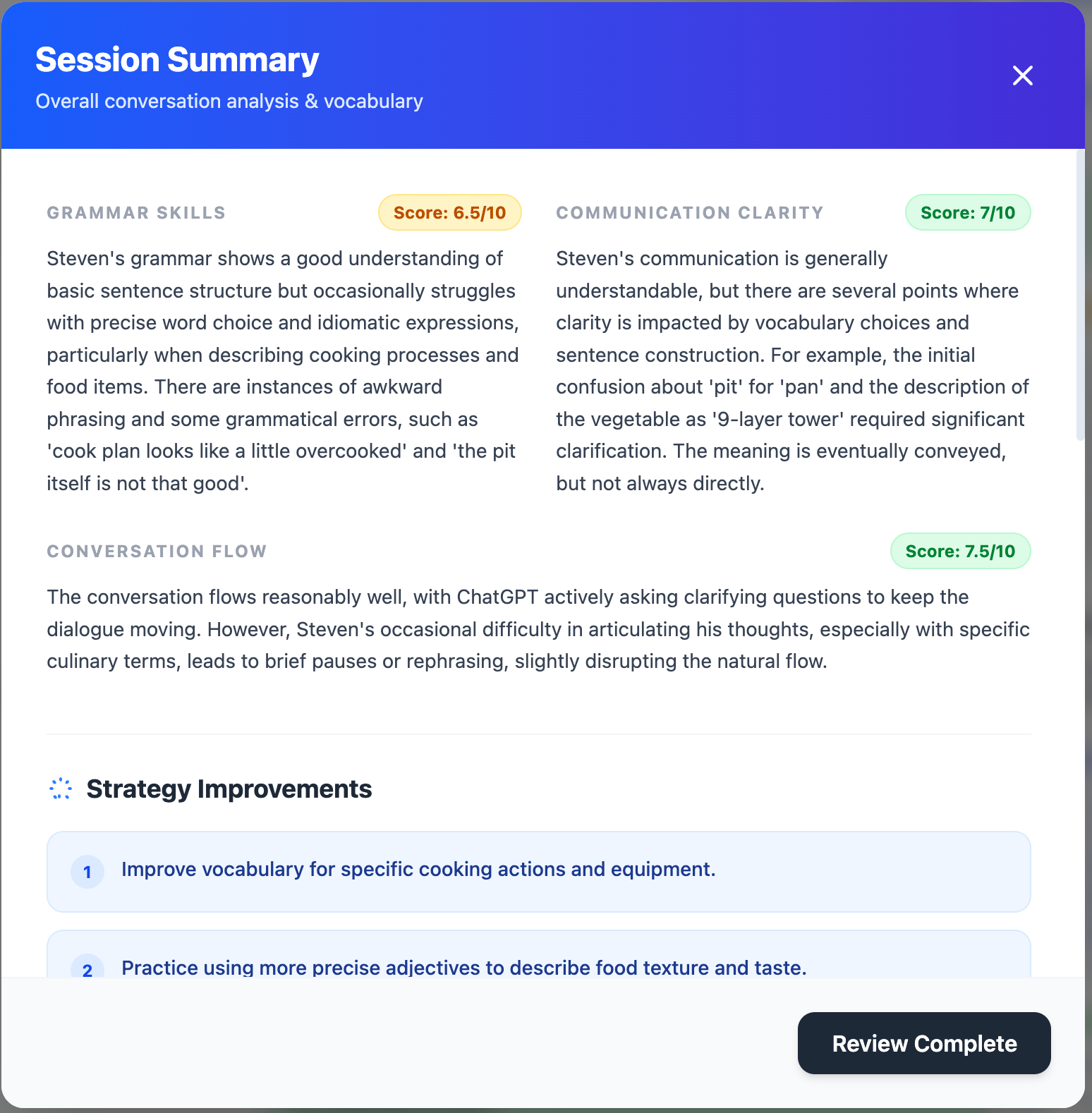
After the whole session, you can also look at the summary. Line-by-line is line-by-line; the summary pulls the whole thing up a level: which grammar mistakes you keep repeating, and which words you could use for the topics you want to talk about in this situation, giving you some inspiration for later study. And every conversation is saved in the sidebar, so if you start practicing a segment each day, you can look back at yesterday’s summary and check “this mistake I made yesterday, am I still making it today.” That makes it a solid practice log.
Why put these tools together
Beyond being free, I think the key is ChatGPT voice mode’s text capture. It captures English well, and even though we sometimes mix Chinese and English when we talk, on this kind of precise word detection it rarely gets things wrong as long as you’re not really mumbling or using a very rare word. That’s a form of practice in itself: practicing whether, when someone listens to us, we’re actually speaking clearly. If you find the recognition result is way off from what you meant to say, it could be pronunciation or it could be word choice that needs adjusting, and you get to look at both together.
The whole flow only uses two AI tools, both free: ChatGPT’s voice mode, and a Gemini API key. If you have another API you prefer, like Grok, we can talk about it, or just open an issue on GitHub, and if there’s real demand I’ll wire it in.
The site is currently hosted at https://gab-guide.omnivorouscat.com/. You’re welcome to use it and share your feedback. Gab Guide itself is open source on GitHub, so anyone interested is welcome to take a look, open an issue, or send a PR.